TUTORIAL
Choose the right tool
Start with the workflow that matches the result you want.
Nonlucid has four creation tools. Pick the tool by deciding whether you are starting from words, a still image, a preset motion, or an image that needs a specific change.
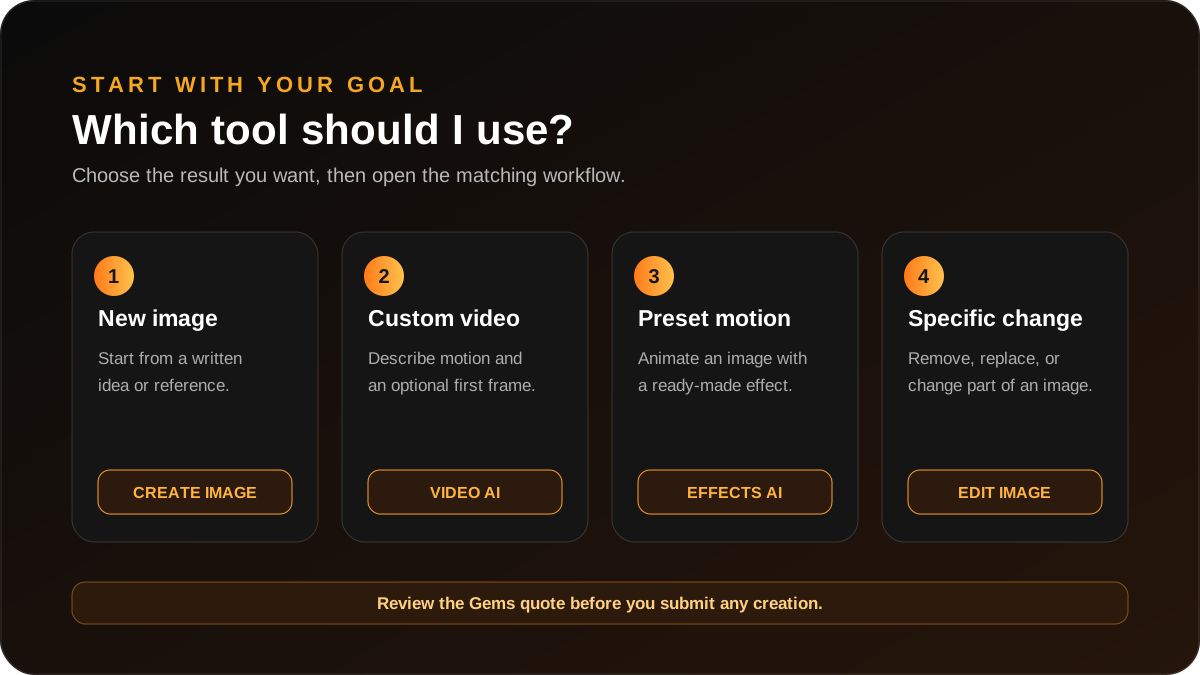
What do you want to make?
Create a new image
- Open Create Image.
- Describe the subject, scene, style, composition, and lighting.
- Review the Gems quote, then create when the setup looks right.
Create a custom video
- Open Video AI.
- Describe the scene and motion.
- Optionally add an opening frame, then choose the available format, duration, and resolution.
Animate an image with a preset
- Open Effects AI and choose an effect that fits the source image.
- Upload a clear image with one obvious subject.
- Review the preview and Gems quote before creating.
Change part of an image
- Open Edit Image or continue from a Library item.
- Choose the edit mode and select the area when needed.
- Describe only the change you want to make.