TUTORIAL
Video AI basics
Create from text or animate an optional opening frame.
Video AI supports text-to-video and image-to-video. Adding an opening image switches the form to image-to-video automatically.
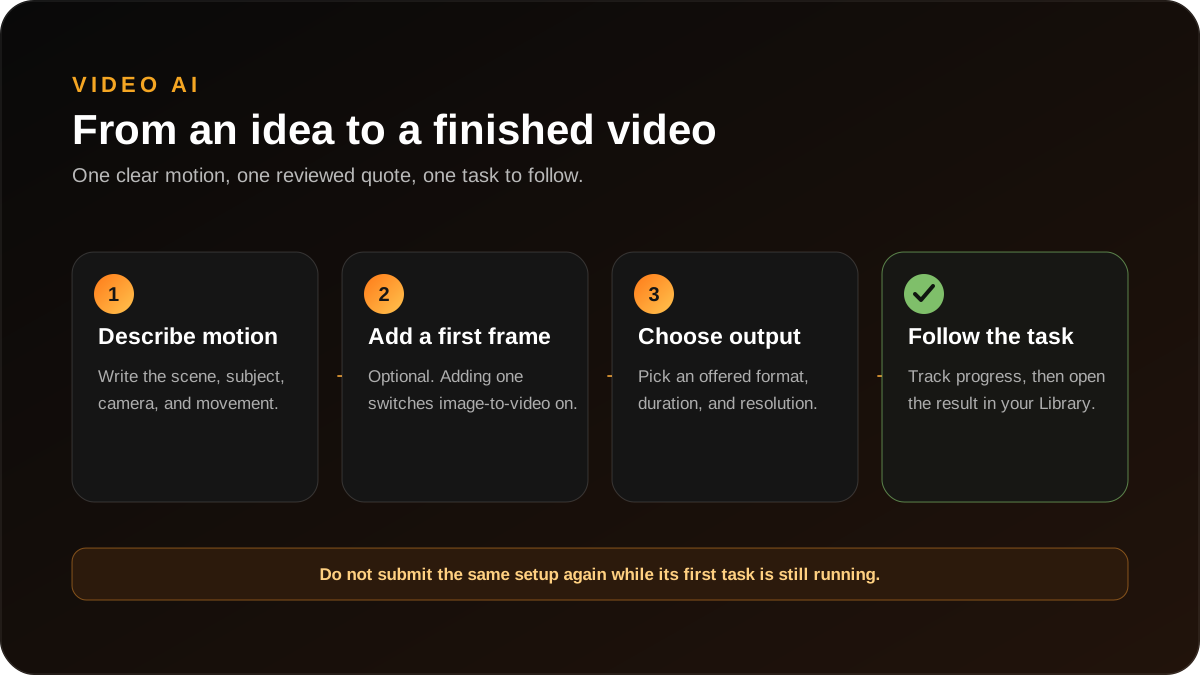
- Choose Landscape or Portrait to match where the video will be viewed.
- Describe what is visible and how the subject or camera should move.
- Add an opening image only when you want that exact image to be the first frame.
- Choose one of the durations and resolutions currently offered on the form.
- Review the server-verified Gems quote and submit once.
- Follow progress in Tasks, then download or continue from the finished result in Library.
When should I add an opening image?
Add one when composition or character appearance should begin from a specific image. Leave it empty when you want the entire scene created from text.
Where does a finished video go?
The result appears on its task detail and in your private Library until the displayed expiry time. Download anything you want to keep.
Open Video AI · unavailableView Tasks